





Understanding how to find the ip of router is essential for anyone managing a home or business network. Whether you're configuring security settings, troubleshooting connectivity issues, or setting up advanced features like VPN routers, accessing your router's administration panel requires knowing this crucial address. This gateway IP serves as the doorway to your router's configuration interface, where you can modify network settings, update firmware, and enhance your network's security. In this comprehensive guide, we'll explore multiple methods to locate your router's IP address across various devices and operating systems, ensuring you can always access your network's control centre when needed.
What Is a Router IP Address and Why It Matters
The ip of router, often called the default gateway, functions as the primary address that allows devices on your local network to communicate with the router itself. This private IP address typically falls within specific ranges reserved for internal networks, most commonly 192.168.0.1, 192.168.1.1, 10.0.0.1, or 192.168.2.1.
Understanding Private vs Public IP Addresses
Your router actually manages two distinct IP addresses. The private IP address is used internally within your network, whilst the public IP address represents your network's identity on the broader internet. When you need to configure router settings, you'll use the private ip of router to access the administration interface.
Key differences include:
- Private IP addresses are visible only within your local network
- Public IP addresses are assigned by your internet service provider
- Private addresses are reusable across different networks
- Public addresses must be unique globally
This dual-address system provides both security and functionality, allowing multiple devices to share a single public internet connection whilst maintaining individual identities within your network.
Finding the IP of Router on Windows Devices
Windows offers several straightforward methods to identify your router's IP address, ranging from graphical interfaces to command-line tools. Each approach provides reliable results, allowing you to choose based on your comfort level with different systems.
Using Command Prompt
The Command Prompt method delivers quick results with minimal steps:
- Press Windows Key + R to open the Run dialogue
- Type cmd and press Enter
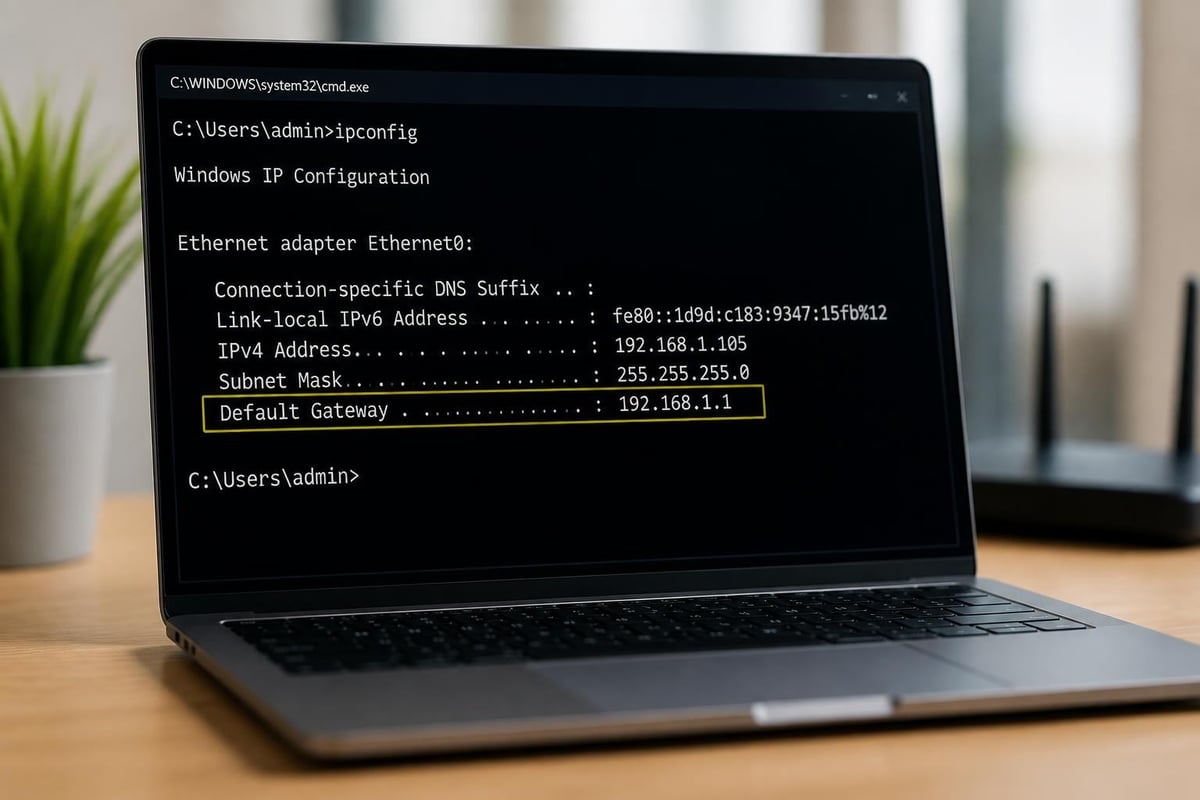
- Enter ipconfig in the command window
- Look for "Default Gateway" under your active network connection
- The address listed is your router's IP
This command-line approach works across all Windows versions and provides comprehensive network information. The default gateway value represents the ip of router you need for administrative access.
Through Network Settings
Windows also provides a graphical method through the Settings application:
- Open Settings and navigate to Network & Internet
- Select your connection type (Wi-Fi or Ethernet)
- Click on your active network connection
- Scroll to Properties and locate "Default gateway"
- The displayed address is your router's IP
According to How-To Geek’s comprehensive guide, these methods work reliably across Windows 10, 11, and earlier versions, providing users with flexible options based on their preferences.
Locating Router IP on macOS Systems
Apple's macOS provides equally straightforward methods for identifying the ip of router, integrated seamlessly within the operating system's interface. Mac users benefit from intuitive graphical tools that display network information clearly.
System Preferences Method
The most user-friendly approach utilises System Preferences:
- Click the Apple menu and select System Preferences
- Choose Network from the available options
- Select your active connection (Wi-Fi or Ethernet) from the left sidebar
- Click Advanced in the bottom-right corner
- Navigate to the TCP/IP tab
- Find the "Router" field, which displays your router's IP address
Terminal Command Option
For users comfortable with command-line interfaces, macOS Terminal offers a swift alternative. Simply open Terminal and type netstat -nr | grep default, which returns the ip of router as the default gateway address. This method proves particularly useful for advanced users or when creating automated scripts.
| Method | Difficulty | Speed | Information Provided |
|---|---|---|---|
| System Preferences | Easy | Moderate | Network overview |
| Terminal Command | Moderate | Fast | Gateway address only |
| Network Utility | Easy | Moderate | Comprehensive data |
Finding Router IP on Mobile Devices
Mobile devices require slightly different approaches for locating the ip of router, but the process remains straightforward across both iOS and Android platforms. Understanding these methods ensures you can access router settings even when away from a computer.
iOS (iPhone and iPad) Instructions
Apple's mobile operating system displays network information within the Settings application:
- Open Settings and tap Wi-Fi
- Tap the information icon (i) next to your connected network
- Scroll down to find the "Router" field
- The displayed address is your router's IP
This information appears alongside other network details, including IP address, subnet mask, and DNS servers, providing a comprehensive view of your connection parameters.
Android Device Process
Android devices vary slightly depending on manufacturer, but the general process remains consistent:
- Open Settings and navigate to Network & Internet
- Tap Wi-Fi and select your connected network
- Choose Advanced or tap the gear icon
- Locate "Gateway" or "Router" in the network details
- The value shown is your router's IP address
Some Android manufacturers customise their interface, so labels might differ slightly. Samsung devices might display this information under "Network details," whilst Google Pixel phones show it in the "Advanced" section.
Common Default Router IP Addresses by Brand
Different router manufacturers typically use specific default IP addresses for their devices. Knowing these common defaults can speed up the process of locating the ip of router, especially during initial setup or after factory resets.
Popular Router Brand Defaults
Understanding manufacturer preferences helps when other discovery methods aren't immediately available. Internet Health Test’s router IP address resource provides an extensive list of these defaults:
Common default addresses include:
- Netgear: 192.168.1.1 or 192.168.0.1
- TP-Link: 192.168.0.1 or 192.168.1.1
- Asus: 192.168.1.1 or 192.168.50.1
- Linksys: 192.168.1.1 or 192.168.0.1
- D-Link: 192.168.0.1 or 192.168.1.1
Trying Default Addresses
When you cannot access system settings, attempting common default addresses often succeeds. Simply type one of these addresses into your web browser's address bar. If it's correct, you'll reach the router's login page. For comprehensive information about router defaults across numerous brands, Router Network’s default IP addresses page offers an extensive database organised alphabetically.
| Brand | Primary Default | Secondary Default | Admin URL |
|---|---|---|---|
| Netgear | 192.168.1.1 | 192.168.0.1 | routerlogin.net |
| TP-Link | 192.168.0.1 | 192.168.1.1 | tplinkwifi.net |
| Asus | 192.168.1.1 | 192.168.50.1 | router.asus.com |
Alternative Methods for Finding Your Router's IP
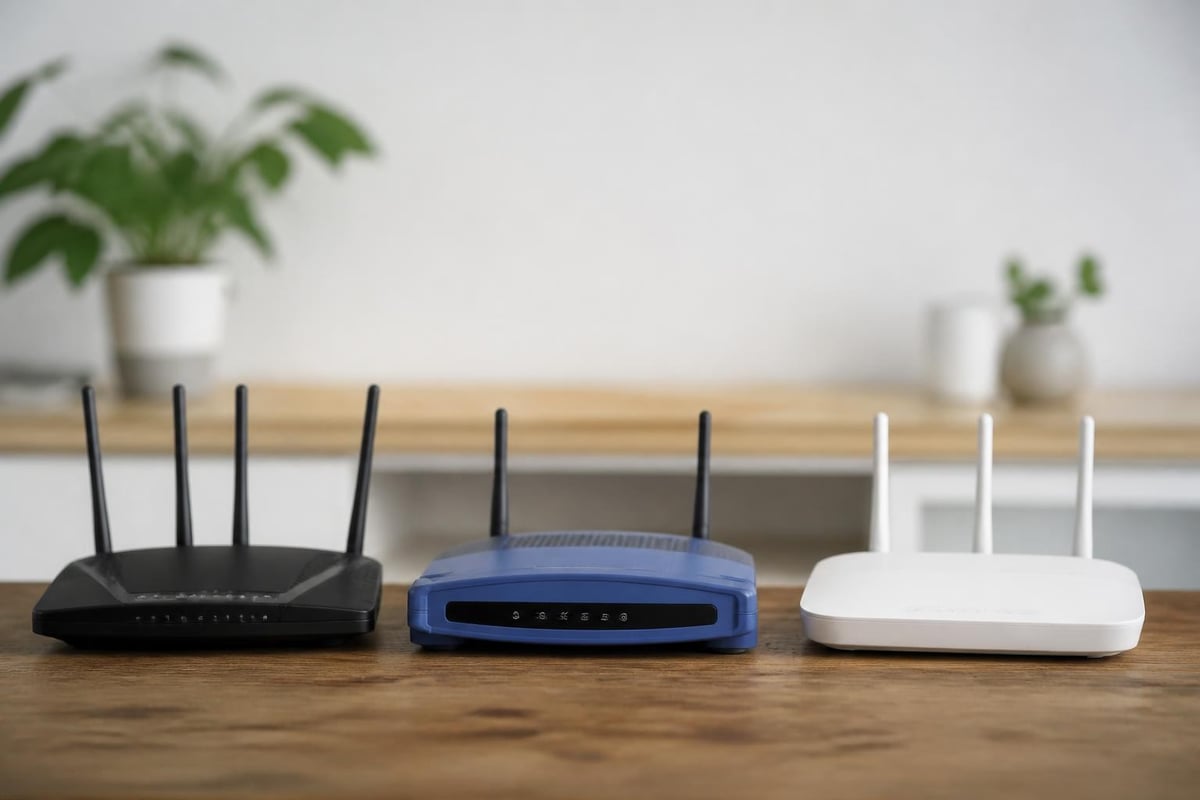
Beyond operating system tools, several alternative approaches exist for identifying the ip of router. These methods prove particularly valuable when conventional options aren't accessible or when you need quick verification.
Checking the Router Label
Most routers display default network information directly on the device itself. Examine the bottom or back panel of your router for a label containing:
- Default IP address
- Default username and password
- Network name (SSID)
- MAC address
This physical label provides reliable information, though remember that the ip of router might differ if someone previously changed it from the default setting.
Using Router Setup Applications
Many manufacturers provide dedicated mobile applications for router management. These apps automatically detect your router and display its IP address without requiring manual discovery. Popular examples include TP-Link Tether, Netgear Nighthawk, and Asus Router. TP-Link’s official support documentation explains how their application simplifies finding router IP addresses.
Web-Based Discovery Tools
Some online services attempt to identify your router's IP address through your browser, though these typically show your public IP rather than the private address needed for router access. For accurate results, stick with operating system tools or physical inspection methods.
Troubleshooting Router IP Address Issues
Occasionally, you might encounter difficulties locating or accessing the ip of router. Understanding common problems and their solutions ensures you can overcome these obstacles efficiently.
When Standard Methods Fail
If typical discovery methods don't reveal your router's IP address, consider these troubleshooting steps:
- Verify your connection: Ensure you're connected to the network via Wi-Fi or Ethernet
- Restart your device: Sometimes network information requires a fresh connection
- Check for VPN interference: Active VPNs might obscure gateway information
- Reset network settings: This clears corrupted network configurations
- Consult router documentation: Manufacturer manuals contain specific guidance
TechNewsToday’s comprehensive guide offers detailed troubleshooting strategies for various scenarios where standard methods prove unsuccessful.
Multiple Router Scenarios
Networks with multiple routers or mesh systems can complicate identifying the primary ip of router. In these situations, you're looking for the gateway router connected directly to your modem. Mesh network satellites typically have different IP addresses from the main router.
Steps for complex networks:
- Identify which router connects to your modem
- Note that mesh satellites use different addresses
- Check each router's label for its specific IP
- Access your primary router first for main settings
Accessing Your Router's Admin Panel
Once you've identified the ip of router, accessing the administration panel requires just a few additional steps. This interface grants control over network settings, security features, and advanced configurations.
Login Process
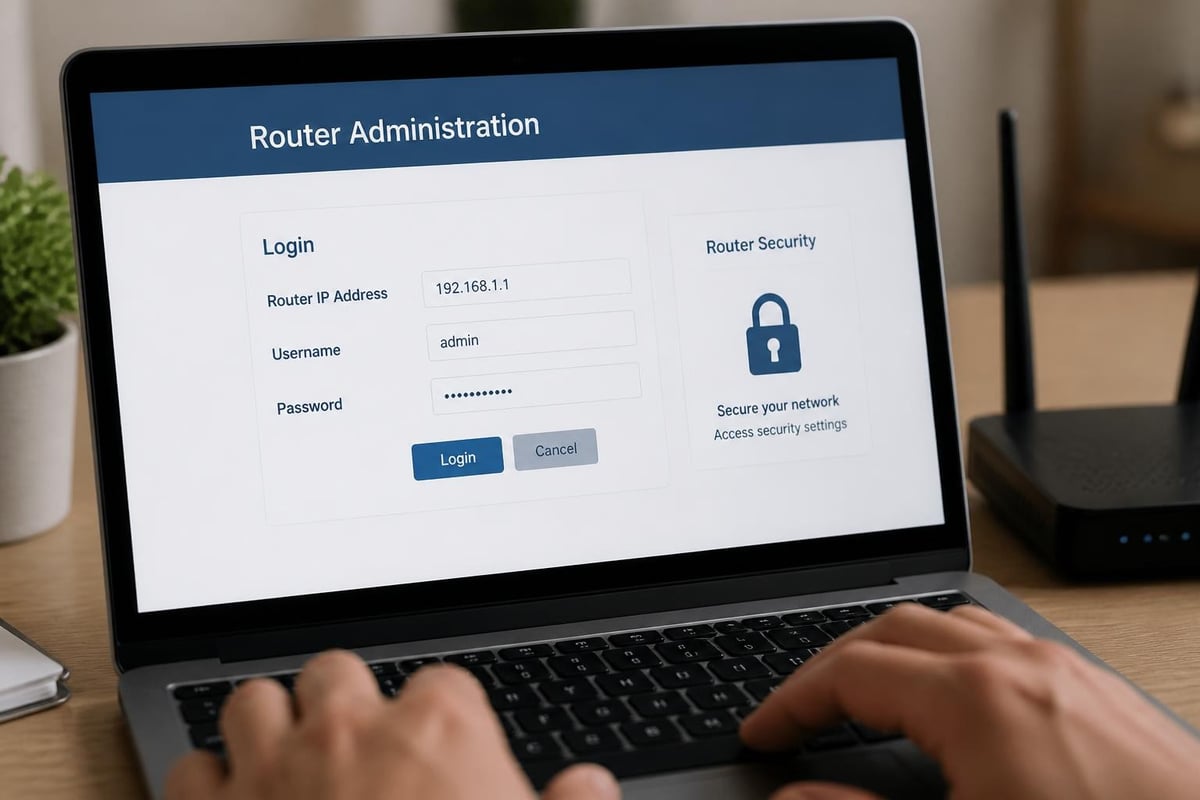
Opening your router's admin panel follows a consistent process across most devices:
- Open any web browser on a connected device
- Type the router's IP address into the address bar
- Press Enter to navigate to the login page
- Enter your username and password
- Click Login or Submit to access settings
The default credentials appear on your router's label unless previously changed. Common default combinations include admin/admin, admin/password, or admin with a blank password field. Gear Primer’s guide on finding router IP addresses includes additional context about accessing router interfaces.
Security Considerations
After your first login, immediately change default credentials to protect your network. Weak or default passwords represent significant security vulnerabilities that malicious actors can exploit. Choose strong, unique passwords combining letters, numbers, and symbols.
Special Considerations for VPN Router Users
Understanding the ip of router becomes particularly important when working with VPN-enabled devices. VPN routers add complexity to network configurations, requiring clear knowledge of IP addresses for both initial setup and ongoing management.
Pre-Configured VPN Router Advantages
For users seeking hassle-free secure networking, pre-configured VPN routers eliminate much of the complexity associated with manual VPN configuration. These plug-and-play devices arrive ready to protect your entire network, with VPN settings already optimised for performance and security. Accessing these routers still requires knowing the ip of router, but the configuration process becomes significantly more straightforward than manual VPN installation.
VPN Router IP Management
VPN routers typically maintain the same private IP addressing scheme as standard routers, but they create additional network segments for VPN-protected traffic. Understanding this architecture helps when troubleshooting or optimising performance:
- The router's local IP remains accessible as normal
- VPN connections receive virtual IP addresses from the VPN server
- Split tunnelling configurations may use multiple gateway addresses
- Some advanced setups employ separate subnets for VPN and standard traffic
| Configuration Type | Local IP Access | VPN IP Range | Complexity Level |
|---|---|---|---|
| Standard Router | Direct | N/A | Low |
| Manual VPN Setup | Direct | VPN-assigned | High |
| Pre-configured VPN | Direct | VPN-assigned | Low |
Advanced IP Address Topics
For users seeking deeper understanding, several advanced concepts relate to router IP addresses and network architecture. These topics prove particularly relevant for business networks, advanced home users, or those implementing sophisticated security measures.
Static vs Dynamic IP Assignment
Routers can assign IP addresses to connected devices through two primary methods. Dynamic addressing uses DHCP to automatically allocate addresses from an available pool, whilst static assignment reserves specific addresses for particular devices. The ip of router itself typically uses a static address to ensure consistent accessibility.
IPv6 Considerations
As networks transition toward IPv6, router addressing becomes more complex. IPv6 routers maintain both IPv4 and IPv6 addresses simultaneously during the transition period. Research into IPv6 scanning methods demonstrates the expanding complexity of modern network addressing schemes.
IPv6 addressing characteristics:
- Much longer address format (128-bit vs 32-bit)
- Eliminates need for NAT in many scenarios
- Provides vastly larger address space
- Requires different discovery methods
- Maintains backward compatibility with IPv4
IP Geolocation and Routing
Understanding where router IP addresses exist physically has implications for security and performance. Studies on improving IP geolocation accuracy reveal how router locations affect network routing decisions and latency. This research particularly benefits users optimising VPN connections or managing distributed networks.
Network Documentation Best Practices
Recording the ip of router alongside other network information creates valuable reference material for future troubleshooting or configuration changes. Proper documentation saves time and reduces errors during network maintenance.
Essential Information to Record
Maintain a secure document containing:
- Router IP address (both default and current if changed)
- Admin username and password
- Network name (SSID) and wireless password
- ISP contact information and account details
- MAC addresses for important devices
- Custom DNS servers or other modifications
- Firmware version and update history
Store this information securely, as it provides complete access to your network. Password managers or encrypted documents offer suitable storage solutions that balance accessibility with security.
Regular Maintenance Schedule
Periodically reviewing your router's IP configuration ensures optimal network performance. TechNadu’s updated router IP address list emphasises the importance of maintaining current information as networks evolve. Schedule quarterly reviews to verify settings, update firmware, and confirm security configurations remain effective.
Understanding how to find and access the ip of router empowers you to take control of your network's security and performance. Whether you're using Windows, macOS, or mobile devices, the methods outlined above ensure you can always locate this essential address. For those seeking comprehensive network protection without configuration complexity, U Shield VPN offers expertly configured VPN routers that combine robust security with effortless setup. Our pre-configured devices protect every connected device whilst maintaining the accessibility and control you need for effective network management.
