





Finding my router IP address is one of the most fundamental skills for anyone managing a home or business network. Whether you're setting up a VPN router, troubleshooting connection issues, or enhancing your network security, accessing your router's admin panel requires knowing this critical piece of information. This guide walks you through multiple methods to locate your router's IP address across different devices and operating systems, whilst explaining why this knowledge matters for your network's security and performance.
Understanding What My Router IP Address Actually Means
Your router's IP address serves as the gateway between your local network and the wider internet. This address functions as the control centre for all devices connected to your network, allowing you to configure security settings, manage connected devices, and optimise network performance.
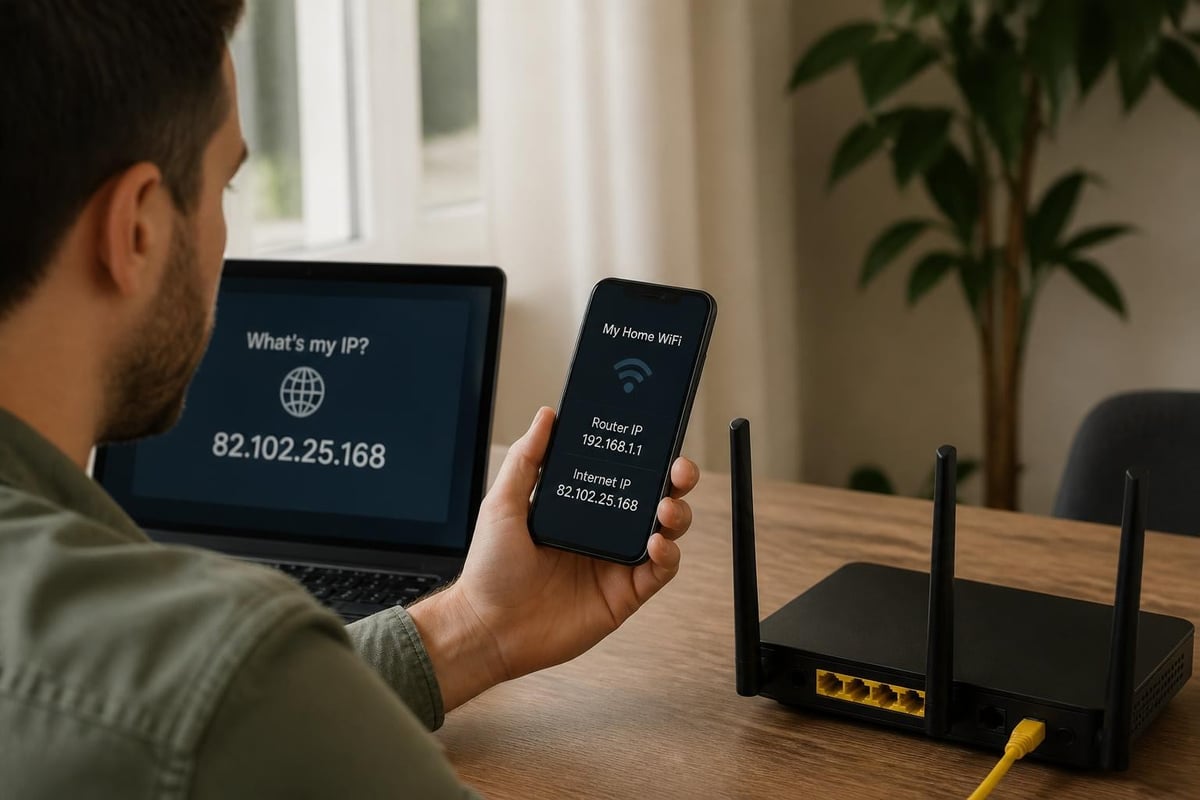
Private vs Public IP Addresses
Private IP addresses are used internally within your home or business network. These are the addresses you'll use to access your router's configuration panel. Common default private IP addresses include:
- 192.168.1.1
- 192.168.0.1
- 10.0.0.1
- 192.168.2.1
Public IP addresses, conversely, are visible to the outside world and assigned by your Internet Service Provider (ISP). Understanding the distinction between these two types is crucial for network management and security purposes.
When you search for "my router IP address," you're typically looking for the private address that grants access to your router's admin interface. This internal address remains consistent unless manually changed, whereas your public IP may change periodically depending on your ISP's configuration.
How to Find My Router IP Address on Windows
Windows offers several straightforward methods to locate your router's IP address, each suitable for different user experience levels.
Using Command Prompt
The Command Prompt method provides the quickest route to finding your router's IP address on Windows systems:
- Press Windows Key + R to open the Run dialogue
- Type
cmdand press Enter - In the Command Prompt window, type
ipconfigand press Enter - Look for "Default Gateway" under your active network connection
- The IP address listed is my router IP address
Through Network Settings
For those preferring a graphical interface, Windows Settings offers an intuitive alternative:
- Open Settings (Windows Key + I)
- Navigate to Network & Internet
- Select your connection type (Wi-Fi or Ethernet)
- Click on your network name
- Scroll down to find Properties
- Locate "Default gateway" to see my router IP address
| Method | Speed | Difficulty | Best For |
|---|---|---|---|
| Command Prompt | Fast | Easy | Technical users |
| Network Settings | Medium | Very Easy | All users |
| Control Panel | Medium | Easy | Windows 10/11 users |
The Control Panel method also works: navigate to Network and Sharing Centre, click your connection, select Details, and find the "IPv4 Default Gateway" entry.
Locating My Router IP Address on Mac Systems
Mac users have equally accessible methods for discovering their router's IP address, with options through System Preferences or Terminal.
System Preferences Method
This approach suits users comfortable with macOS's native interface:
- Click the Apple menu and select System Preferences
- Choose Network
- Select your active connection (Wi-Fi or Ethernet)
- Click Advanced
- Navigate to the TCP/IP tab
- Find "Router" to see my router IP address
Using Terminal
Power users often prefer the Terminal approach for its speed and precision. Open Terminal from Applications > Utilities and enter either netstat -nr | grep default or ipconfig getifaddr en0 to quickly retrieve routing information. These commands provide comprehensive network details useful for advanced configuration tasks.
The Terminal method particularly benefits users managing multiple networks or configuring VPN routers, as it displays additional technical information alongside my router IP address.
Finding My Router IP Address on Mobile Devices
Mobile devices have become primary internet access points for many users, making it essential to locate router IP addresses from smartphones and tablets.
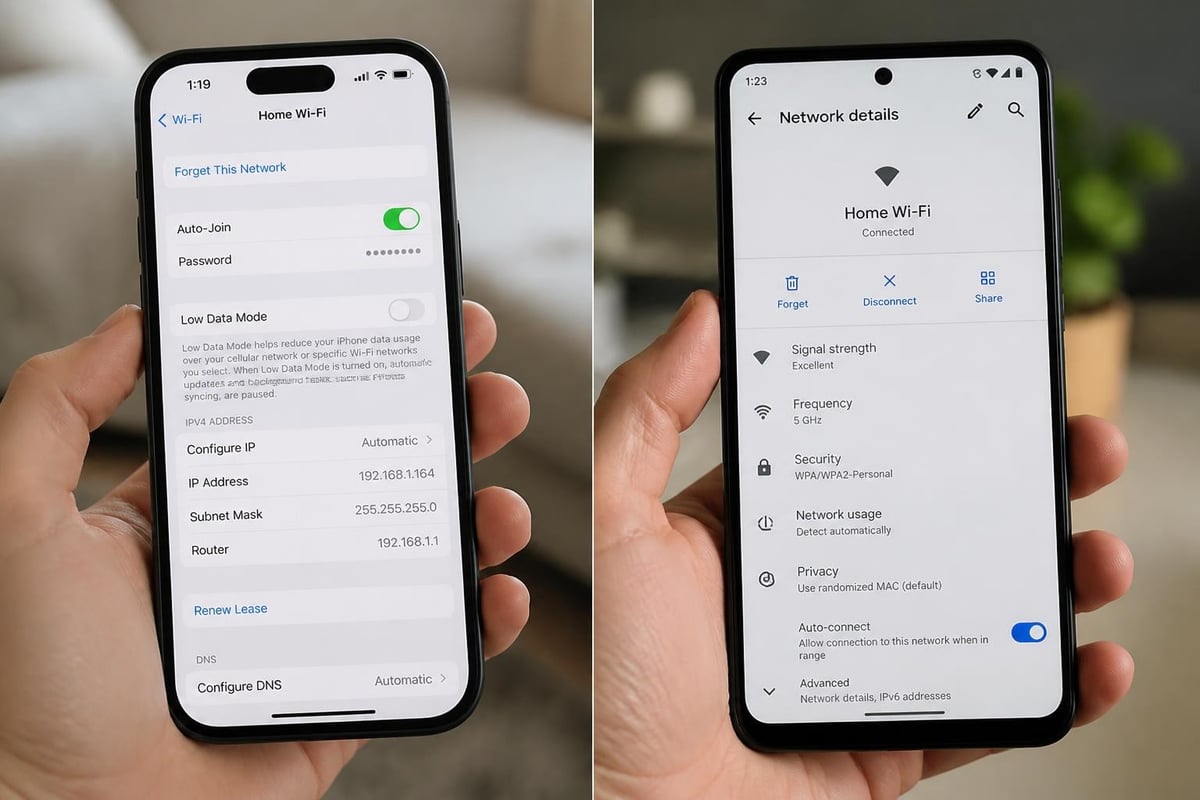
iOS (iPhone and iPad)
Apple's mobile operating system displays network information within the Settings app:
- Open Settings
- Tap Wi-Fi
- Tap the (i) icon next to your connected network
- Scroll down to find Router under the IPv4 Address section
- This displays my router IP address
Android Devices
Android's approach varies slightly depending on manufacturer customisation, but the core process remains consistent:
- Open Settings
- Tap Network & Internet (or Connections)
- Select Wi-Fi
- Tap your connected network
- Look for Gateway or Router to see my router IP address
Some Android implementations hide this information within an "Advanced" menu or require tapping "Network details" first. Third-party apps from the Play Store can also display comprehensive network information, though built-in methods remain the most secure option.
Common Default Router IP Addresses by Manufacturer
Different router manufacturers typically use specific default IP addresses, though these can be customised during initial setup or subsequent configuration changes.
| Manufacturer | Common Default IPs | Alternative IPs |
|---|---|---|
| TP-Link | 192.168.0.1 | 192.168.1.1, tplinkwifi.net |
| NETGEAR | 192.168.1.1 | 192.168.0.1, routerlogin.net |
| ASUS | 192.168.1.1 | 192.168.50.1, router.asus.com |
| Linksys | 192.168.1.1 | 192.168.0.1, myrouter.local |
| D-Link | 192.168.0.1 | 192.168.1.1 |
These defaults provide a starting point when other methods fail, though relying solely on defaults may prove unsuccessful if previous network administrators changed the configuration. Always verify using your operating system's network tools for accuracy.
Many modern routers also support URL-based access using manufacturer-specific addresses like "routerlogin.net" or "tplinkwifi.net," which automatically resolve to my router IP address regardless of whether defaults were changed.
Why Knowing My Router IP Address Matters for Security
Access to your router's admin panel through its IP address represents the cornerstone of network security management. Without this access, you cannot implement crucial security measures or monitor potential threats.
Essential Security Tasks Requiring Router Access
Changing default credentials stands as the single most important security action. Default usernames and passwords are publicly documented and represent the primary vulnerability exploited in router attacks. Security experts consistently emphasise the importance of immediate credential changes upon router installation.
Firmware updates address newly discovered vulnerabilities and improve performance. Accessing my router IP address allows you to check for and install these critical updates, protecting against emerging threats.
Network monitoring capabilities available through the router interface help identify unauthorised devices, unusual traffic patterns, and potential security breaches. Regular checks through the admin panel maintain network integrity.
VPN Router Configuration
For users implementing network-wide VPN protection, accessing my router IP address becomes essential for proper configuration. Pre-Configured VPN Routers streamline this process by arriving ready to use, though understanding the underlying IP architecture remains valuable for troubleshooting and customisation.
VPN router setup typically involves:
- Entering VPN credentials into the router interface
- Selecting VPN protocols (WireGuard, OpenVPN)
- Configuring kill switch settings
- Managing DNS settings for privacy
- Setting up split tunnelling rules
Each of these tasks requires admin panel access, which begins with knowing my router IP address.
Troubleshooting When You Cannot Access My Router IP Address
Sometimes standard methods fail to reveal or connect to your router's IP address, requiring alternative approaches and diagnostic steps.
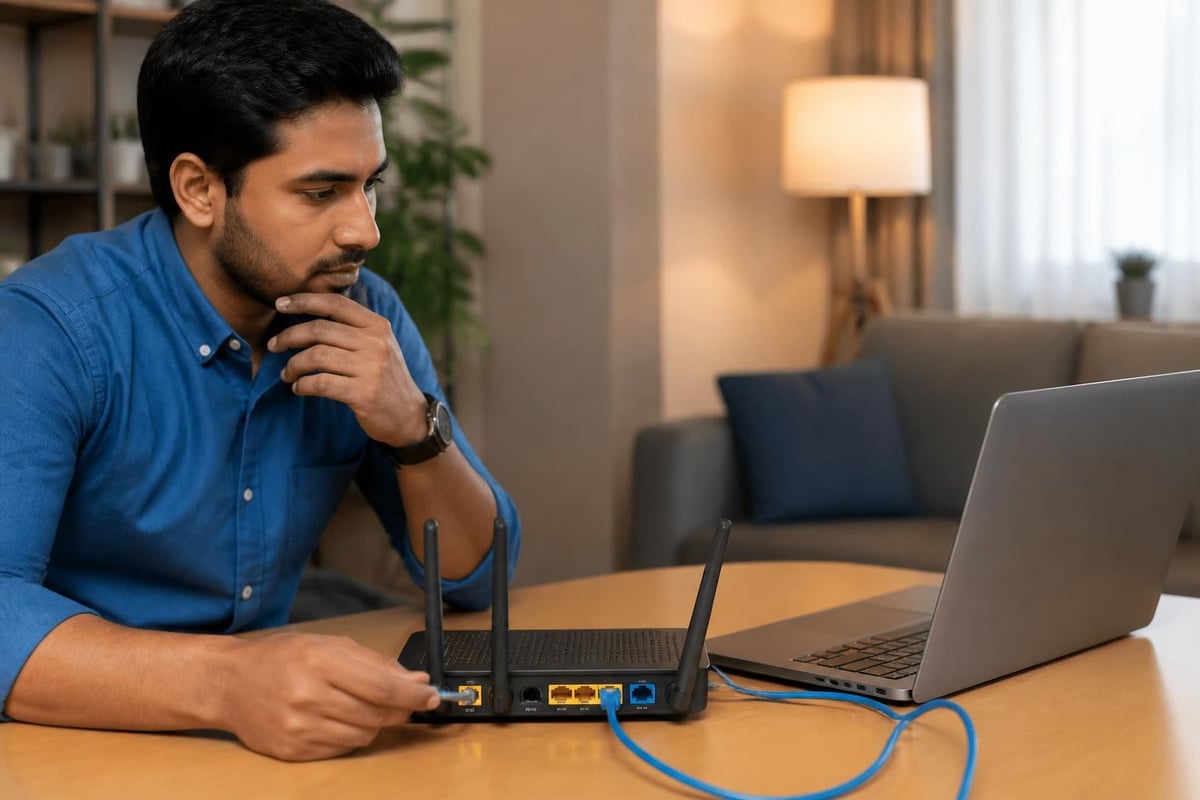
Checking Physical Connections
Before diving into complex troubleshooting, verify basic connectivity:
- Ensure Ethernet cables are properly seated
- Confirm Wi-Fi is enabled and connected
- Check that router power indicators show normal operation
- Verify you're connected to the correct network
Router Label Information
Most routers display default IP addresses on a label affixed to the device itself, usually on the bottom or rear panel. This label typically includes:
- Default IP address
- Default username
- Default password
- MAC address
- Serial number
Accessing this physical information provides a fallback when software methods fail or after factory resets.
Network Reset Options
If you cannot determine or access my router IP address despite trying multiple methods, a network reset may resolve the issue:
Windows: Open Command Prompt as Administrator and run netsh int ip reset, then netsh winsock reset, followed by a system restart.
Mac: Delete network preferences by removing files from /Library/Preferences/SystemConfiguration/ whilst disconnected from networks.
These resets clear corrupted network configurations that might prevent proper IP address discovery or router communication.
Advanced Methods for Finding My Router IP Address
Power users and network administrators benefit from additional techniques that provide more detailed network information alongside basic IP address discovery.
Using Third-Party Network Tools
Specialised network scanning applications offer comprehensive insights into network topology and device information:
- Angry IP Scanner – Cross-platform tool for network discovery
- Advanced IP Scanner – Windows application with detailed device information
- Fing – Mobile and desktop app for network analysis
- Wireless Network Watcher – Lightweight Windows utility
These tools not only identify my router IP address but also reveal all connected devices, potential security vulnerabilities, and network performance metrics.
Router Manufacturer Apps
Many router manufacturers provide dedicated mobile applications that automatically detect and connect to their devices:
- TP-Link Tether
- NETGEAR Nighthawk
- ASUS Router
- Linksys Smart Wi-Fi
These apps bypass the need to manually enter my router IP address by using network discovery protocols, whilst offering streamlined interfaces for common configuration tasks.
Command Line Deep Dive
Advanced users can extract extensive routing information using platform-specific commands. Technical guides demonstrate various approaches for different scenarios and operating systems.
On Windows, route print displays the complete routing table, whilst arp -a shows all devices on the local network with their IP and MAC addresses. Mac and Linux users can employ ip route show or netstat -rn for similar information.
Changing My Router IP Address
Whilst finding your current router IP address is essential, some situations require changing it to a different address within the private IP range.
Reasons to Change Router IP Addresses
Avoiding conflicts with other network devices or when connecting multiple routers prevents communication issues and ensures stable network operation.
Enhanced security through obscurity makes automated attacks slightly more difficult, though this should never replace proper security measures like strong passwords and firmware updates.
Network organisation in complex environments with multiple subnets benefits from logical IP address schemes that simplify management and troubleshooting.
The Change Process
Modifying my router IP address follows a consistent pattern across manufacturers:
- Access the router admin panel using the current IP address
- Navigate to LAN or Network Settings
- Locate the "Router IP Address" or "LAN IP" field
- Enter the new desired IP address (maintain the same subnet class)
- Save changes and wait for the router to restart
- Reconnect using the new IP address
Important: Choose an IP address that doesn't conflict with DHCP pools or statically assigned devices. Changing my router IP address will disconnect all devices temporarily, requiring reconnection with the new address.
Using My Router IP Address for Network Optimisation
Beyond security and basic configuration, accessing your router's admin panel enables performance enhancements that improve network experience for all connected devices.
Quality of Service (QoS) Configuration
QoS settings prioritise specific types of traffic or devices, ensuring critical applications receive adequate bandwidth:
- Gaming devices benefit from low latency prioritisation
- Streaming services require consistent bandwidth allocation
- Video conferencing needs both bandwidth and latency management
- Background downloads can be deprioritised during peak usage
Implementing QoS requires access through my router IP address to configure these priority rules based on your specific usage patterns.
DNS Configuration
Custom DNS servers can improve browsing speed, enhance privacy, and enable content filtering. Popular alternatives to ISP-provided DNS include:
| DNS Provider | Primary IP | Secondary IP | Benefits |
|---|---|---|---|
| Cloudflare | 1.1.1.1 | 1.0.0.1 | Privacy-focused, fast |
| 8.8.8.8 | 8.8.4.4 | Reliable, widely supported | |
| Quad9 | 9.9.9.9 | 149.112.112.112 | Security filtering |
| OpenDNS | 208.67.222.222 | 208.67.220.220 | Parental controls available |
Configuring these settings through the router interface affects all connected devices simultaneously, providing network-wide benefits without individual device configuration.
Wireless Channel Optimisation
Wi-Fi congestion from neighbouring networks degrades performance, particularly in dense residential areas. Accessing my router IP address allows channel analysis and adjustment:
- 2.4 GHz band offers channels 1, 6, and 11 as non-overlapping options
- 5 GHz band provides numerous channels with less interference
- Channel width settings balance speed versus range
- Band steering guides dual-band devices to optimal frequencies
Modern routers often include spectrum analysis tools accessible through the admin panel, displaying channel utilisation and recommending optimal settings based on your environment.
My Router IP Address and Multi-Router Networks
Complex home and business environments frequently employ multiple routers to extend coverage or segment networks, creating unique IP address management requirements.
Mesh Systems and Access Points
Mesh networks use multiple nodes but typically maintain a single admin interface accessed through the primary node's IP address. The secondary nodes receive automatic IP assignments and don't require individual configuration in most consumer systems.
Traditional access points connected to a primary router operate differently:
- Each AP may have its own IP address
- Configuration might occur through the primary router or individually
- IP addresses must fall within the main network's subnet
- DHCP should typically be disabled on secondary devices
Understanding which device serves as your network's primary gateway helps identify the correct IP address for accessing core network settings.
Cascaded Router Configurations
When connecting a second router to an existing network, proper IP address planning prevents conflicts:
- The primary router maintains its original IP address (e.g., 192.168.1.1)
- The secondary router's WAN port receives an IP from the primary's DHCP range
- The secondary router's LAN IP should use a different subnet (e.g., 192.168.2.1)
- DHCP on the secondary router serves its subnet range
This configuration creates separate networks whilst maintaining internet access through the primary gateway, useful for isolating guest networks or IoT devices.
Documentation and Record Keeping
Maintaining accurate records of my router IP address and related network information simplifies future troubleshooting and configuration tasks, particularly in business environments or complex home networks.
Essential Information to Document
Create a network information sheet containing:
- Router IP address (current and any previous addresses)
- Admin username and password (store securely)
- Wi-Fi network names (SSIDs) and passwords
- ISP contact information and account details
- VPN configuration details if applicable
- Port forwarding rules and their purposes
- Static IP assignments and device names
Security note: Store this information in a password manager or encrypted document rather than plain text files accessible to unauthorised users.
Change Logs
Recording configuration changes helps diagnose issues that emerge after modifications:
- Date and time of changes
- Specific settings modified
- Reason for the change
- Any resulting issues or improvements
- Rollback steps if needed
This documentation proves invaluable when troubleshooting network problems or training new administrators in business settings.
Understanding how to find and use my router IP address forms the foundation of effective network management and security. Whether you're setting up a new device, troubleshooting connectivity issues, or implementing advanced security measures, this knowledge empowers you to take control of your network environment. For those seeking hassle-free network security with VPN protection across all devices, U Shield VPN offers pre-configured routers that eliminate complex setup whilst maintaining full access to advanced features through intuitive admin interfaces powered by WireGuard and OpenVPN technologies.
