





Setting up a VPN directly on your router transforms your entire network security posture, protecting every device that connects to your Wi-Fi automatically. Unlike individual device configurations, a private internet access router setup ensures comprehensive protection for smartphones, smart TVs, gaming consoles, and IoT devices that typically lack native VPN support. This approach offers convenience, consistency, and complete network coverage that traditional device-by-device installations simply cannot match.
Understanding Router-Level VPN Protection
Router-level VPN implementation differs fundamentally from application-based solutions. When you configure a VPN on your router, the encryption occurs at the network gateway level, meaning every packet leaving your network travels through an encrypted tunnel before reaching the internet.
Why Choose Router-Based VPN Configuration
Network-wide protection eliminates the need to install and manage separate VPN applications on individual devices. A single configuration protects everything simultaneously, from your children's tablets to your smart home devices.
- Simultaneous device protection without connection limits
- Automatic encryption for devices that don't support VPN apps
- Consistent security policies across your entire network
- Simplified management through centralised configuration
The primary advantage lies in treating security as an infrastructure concern rather than an application-level task. Security experts highlight that router-based implementations provide superior protection for IoT devices, which often have security vulnerabilities and no native VPN support.
Technical Requirements and Compatibility
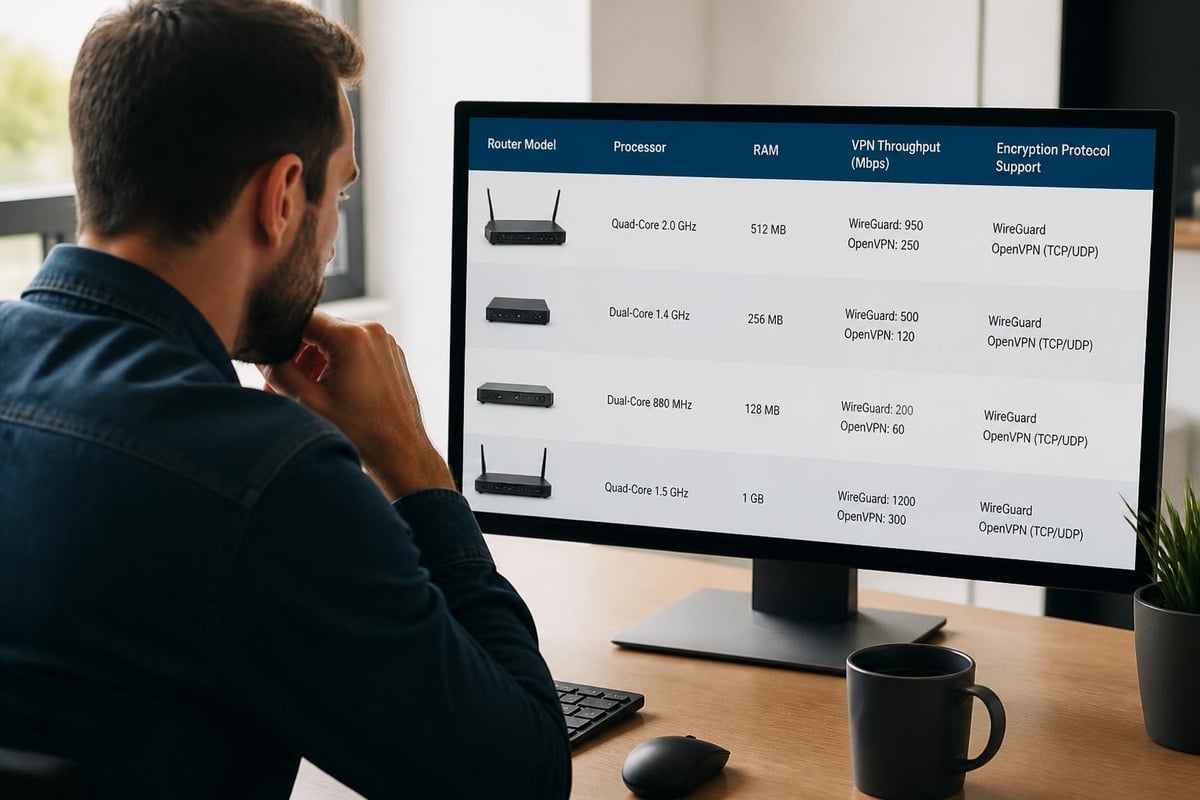
Not all routers support VPN configurations equally. Before attempting a private internet access router setup, verify your hardware meets the necessary specifications.
| Requirement | Minimum Specification | Recommended |
|---|---|---|
| Processor | 800 MHz dual-core | 1.4 GHz quad-core |
| RAM | 128 MB | 256 MB or higher |
| Flash Storage | 16 MB | 32 MB or higher |
| Firmware | DD-WRT, Tomato, or OpenWrt compatible | Native VPN support |
Processing power directly impacts VPN throughput performance. Research indicates that consumer-grade routers often struggle with OpenVPN encryption overhead, potentially reducing speeds by 50-70% on underpowered hardware. Modern routers with hardware acceleration capabilities can maintain near-line speeds even with VPN encryption active.
Preparing Your Router for VPN Installation
Proper preparation prevents configuration errors and ensures optimal performance throughout the setup process. Begin by gathering necessary credentials and documenting your current network settings.
Pre-Configuration Checklist
- Record current network settings including IP addresses, subnet masks, and DNS configurations
- Create a complete backup of your existing router configuration
- Update router firmware to the latest stable version
- Gather VPN credentials including server addresses, authentication certificates, and configuration files
- Test current internet speeds to establish baseline performance metrics
Your VPN provider should supply configuration files, server addresses, and authentication credentials. Download these materials before beginning the installation process. Most providers offer router-specific configuration guides, but the general principles of private internet access router setup remain consistent across platforms.
Firmware Options and Capabilities
Standard manufacturer firmware rarely includes comprehensive VPN functionality. Third-party firmware expands capabilities significantly, offering advanced features and protocol support.
DD-WRT represents the most popular alternative firmware, providing extensive VPN protocol support including OpenVPN, PPTP, and L2TP. The interface allows granular control over routing policies, DNS settings, and kill switch configurations.
Tomato firmware offers a more streamlined interface whilst maintaining robust VPN capabilities. Many users find Tomato's dashboard more intuitive for basic configurations, though it supports fewer router models than DD-WRT.
OpenWrt provides maximum flexibility for advanced users comfortable with command-line interfaces. This Linux-based firmware supports the widest range of hardware and offers unparalleled customisation options.
Configuring OpenVPN on Your Router
OpenVPN remains the gold standard for router VPN implementations due to its security, reliability, and broad compatibility. The configuration process varies slightly depending on firmware, but core concepts remain universal.
Accessing Router Administration Interface
Connect to your router using a wired Ethernet connection to prevent disconnection during critical configuration steps. Open a web browser and navigate to your router's IP address, typically 192.168.1.1 or 192.168.0.1.
Enter administrator credentials to access the configuration interface. If you haven't changed the default password, consult your router's documentation or the label on the device itself.
Installing OpenVPN Configuration Files
Navigate to the VPN section within your router's firmware interface. The exact location varies by firmware:
- DD-WRT: Services → VPN → OpenVPN Client
- Tomato: VPN Tunnelling → OpenVPN Client
- OpenWrt: System → Software (install openvpn-openssl package first)
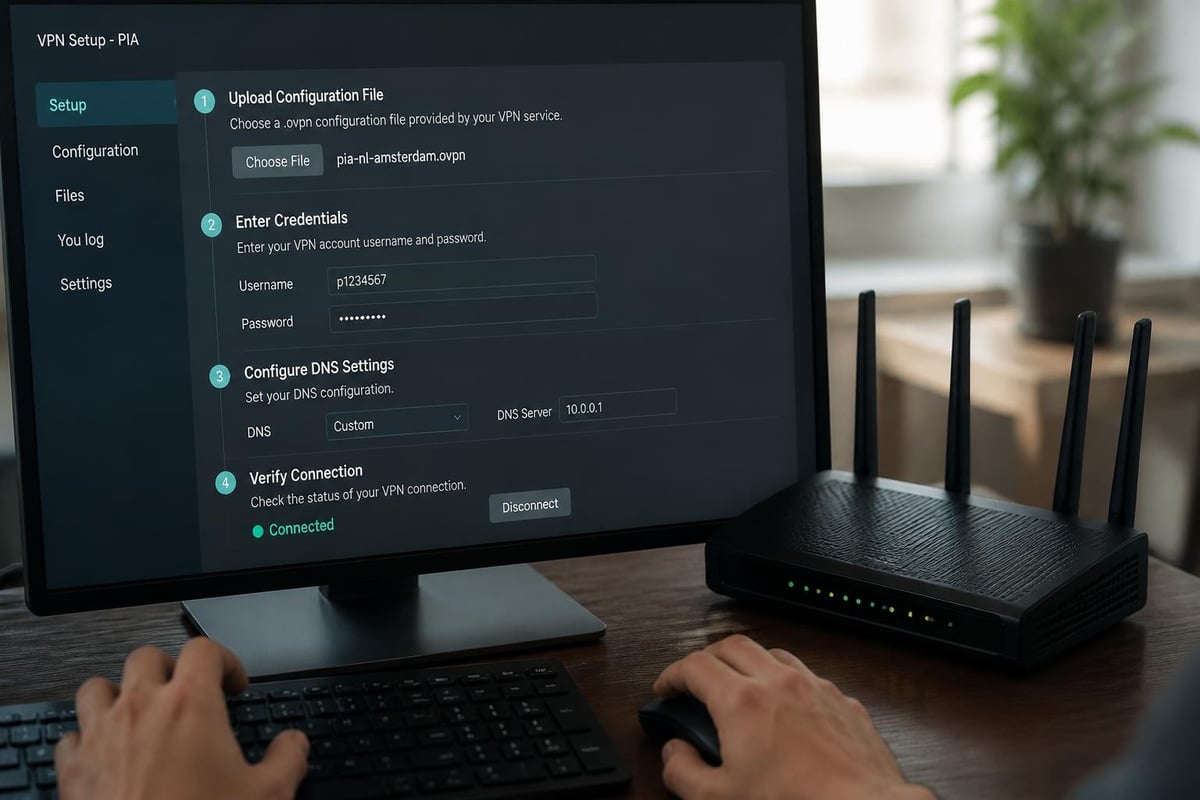
Upload or paste your VPN provider's configuration file. This file contains server addresses, port numbers, encryption protocols, and authentication methods. Many providers offer router-optimised configuration files that include recommended settings for optimal performance.
Authentication and Credential Configuration
Most VPN implementations require username and password authentication in addition to certificate-based validation. Enter your VPN credentials in the designated fields, ensuring accuracy to prevent connection failures.
Certificate files (typically .crt, .key, and .pem extensions) provide cryptographic authentication. Upload these files to the appropriate sections:
| File Type | Purpose | Location in Config |
|---|---|---|
| ca.crt | Certificate Authority | CA Cert |
| client.crt | Client Certificate | Public Client Cert |
| client.key | Private Key | Private Client Key |
| ta.key | TLS Authentication | TLS Auth Key |
Advanced settings allow customisation of encryption ciphers, authentication algorithms, and compression methods. Unless you have specific requirements, default settings typically provide excellent security and performance balance.
Implementing WireGuard Protocol
WireGuard represents the next generation of VPN technology, offering superior performance with simpler configuration compared to OpenVPN. This modern protocol achieves faster speeds with lower processor overhead, making it ideal for private internet access router setup on modest hardware.
WireGuard Configuration Basics
WireGuard uses public-key cryptography rather than certificates and usernames. Your VPN provider supplies a configuration file containing:
- Interface settings including private key and IP address
- Peer configuration with public key and endpoint details
- Allowed IPs determining which traffic routes through the tunnel
Generate keypairs through your router's interface or your VPN provider's dashboard. The configuration process involves fewer steps than OpenVPN, typically requiring only copying and pasting configuration text.
Performance Optimisation Settings
- MTU adjustment: Set to 1420 for WireGuard to prevent fragmentation
- Persistent keepalive: Enable with 25-second intervals for stable connections
- DNS configuration: Specify VPN provider's DNS servers to prevent leaks
- Allowed IPs routing: Configure 0.0.0.0/0 for all traffic or specific subnets for split tunnelling
WireGuard's lightweight codebase means better performance on resource-constrained routers. Many users report 2-3x faster speeds compared to OpenVPN on identical hardware, particularly beneficial for streaming and gaming applications.
Advanced Configuration and Security Hardening
Basic VPN connectivity provides substantial security improvements, but advanced configurations maximise protection and performance. Implementing additional safeguards ensures your private internet access router setup maintains security even during connection failures.
DNS Leak Prevention
DNS leaks occur when domain name queries bypass the VPN tunnel, potentially exposing browsing activity. Configure your router to use VPN provider DNS servers exclusively:
- Primary DNS: Provided by VPN service
- Secondary DNS: Alternative VPN DNS server
- Disable IPv6: Unless VPN supports IPv6, disable to prevent leaks
- Force DNS redirection: Route all port 53 traffic through VPN
Test for DNS leaks after configuration by visiting dedicated testing websites whilst connected through your router. Queries should resolve through VPN provider servers, not your ISP's infrastructure.
Kill Switch Implementation
A kill switch prevents internet access when the VPN connection drops, ensuring no unencrypted traffic escapes your network. Implementation methods vary by firmware:
DD-WRT approach: Create firewall rules blocking WAN access except through VPN interface. Configure routing tables to prevent default gateway usage when VPN disconnects.
Script-based solution: Monitor VPN connection status and automatically disable WAN access upon disconnection. Re-enable only after successful VPN reconnection.
Split Tunnelling Configuration
Split tunnelling allows selective routing, sending some traffic through the VPN whilst other connections use direct internet access. This proves useful for:
- Local network access to printers and network storage
- Banking websites that block VPN connections
- Streaming services requiring specific geographic locations
- Performance-critical applications where VPN overhead impacts functionality
Configure routing tables to specify which IP addresses or subnets bypass VPN encryption. Exercise caution with split tunnelling, as incorrectly configured rules may expose sensitive traffic.
Troubleshooting Common Connection Issues
Even properly configured router VPN setups occasionally encounter connectivity problems. Systematic troubleshooting identifies and resolves issues quickly.
Connection Failure Diagnosis
When your private internet access router setup fails to connect, verify these elements sequentially:
- Internet connectivity: Ensure base internet access works without VPN
- Credential accuracy: Verify username, password, and certificate files
- Server availability: Test alternative VPN servers
- Port forwarding: Check firewall rules don't block VPN ports
- Firmware compatibility: Confirm firmware version supports required protocols
Router logs provide detailed information about connection attempts and failure reasons. Access system logs through your firmware's administration interface to identify specific error messages.
Performance Optimisation Strategies
Slow VPN speeds frustrate users and diminish the value of router-level protection. Several factors influence throughput:
| Performance Factor | Impact | Solution |
|---|---|---|
| Encryption protocol | High CPU usage | Switch to WireGuard or hardware-accelerated AES |
| Server distance | Increased latency | Choose geographically closer servers |
| Router hardware | Processing bottleneck | Upgrade to more powerful hardware |
| Network congestion | Reduced bandwidth | Change VPN port or protocol |
For users seeking optimal performance without configuration complexity, pre-configured VPN routers eliminate guesswork by providing professionally optimised hardware specifically designed for VPN workloads.

Managing Multiple VPN Servers and Failover
Enterprise and power users benefit from multi-server configurations that provide redundancy and geographic flexibility. Advanced router firmware supports multiple VPN connections with automatic failover capabilities.
Server Pool Configuration
Configure multiple VPN server profiles with different geographic locations and performance characteristics:
- Primary server: Closest geographic location for optimal speed
- Secondary server: Alternative region for failover
- Specialty servers: Streaming-optimised or P2P-friendly endpoints
- Backup connection: Different protocol for maximum compatibility
Automatic failover monitors primary connection health and switches to backup servers when connectivity degrades or fails completely. Configure health checks with appropriate intervals and failure thresholds.
Policy-Based Routing
Advanced routing policies direct traffic based on source device, destination, or application requirements. Create rules that route:
- Work devices through business-appropriate VPN servers
- Streaming devices through entertainment-optimised endpoints
- Gaming consoles via low-latency servers
- Guest network through maximum security configurations
This granular control maximises both security and performance whilst accommodating diverse network usage patterns.
Monitoring and Maintaining Your VPN Router
Ongoing monitoring ensures continued security and optimal performance. Establish regular maintenance routines to identify potential issues before they impact connectivity.
Performance Metrics and Logging
Track key performance indicators to establish baseline performance and detect anomalies:
- Connection uptime and disconnection frequency
- Throughput speeds at various times throughout the day
- Latency measurements to critical services and websites
- CPU and memory utilisation during peak usage periods
Enable comprehensive logging for security events whilst balancing storage constraints. Retain logs for sufficient duration to identify patterns whilst preventing storage exhaustion.
Firmware Updates and Security Patches
VPN router security depends on current firmware with latest security patches. Establish update procedures:
- Monitor firmware repositories for new releases
- Review changelog for security fixes and feature additions
- Test updates in non-production environment when possible
- Backup current configuration before applying updates
- Verify functionality after upgrade completion
Subscribe to security mailing lists for your router firmware to receive timely notification of critical vulnerabilities. Many leading VPN services provide specific guidance for router configurations, including recommended update schedules.
Additional Resources and Expert Support
Mastering private internet access router setup requires patience and attention to detail, but resources exist to simplify the journey. Manufacturer forums, VPN provider documentation, and independent communities offer valuable assistance for both novice and experienced users.
Comprehensive guides from technology publications evaluate different approaches and hardware options, whilst hardware reviews identify routers best suited for VPN workloads. For users requiring additional assistance, many VPN providers maintain detailed knowledge bases addressing common configuration challenges.
Understanding the nuances of router VPN configurations empowers you to make informed decisions about network security architecture. The U Shield VPN FAQ addresses frequently asked questions about router configurations, protocol selection, and optimisation strategies specific to pre-configured solutions.
Implementing a robust private internet access router setup transforms your network security from a device-level concern into comprehensive infrastructure protection. By following systematic configuration procedures, implementing proper security hardening, and maintaining ongoing monitoring, you create a resilient security foundation protecting every connected device. Whether configuring firmware manually or seeking streamlined solutions, U Shield VPN offers expertly configured routers that eliminate complexity whilst delivering enterprise-grade protection for homes, businesses, and travellers who demand reliable, high-performance security without the technical overhead.
