

NordVPN remains one of the most popular virtual private network services in 2026, offering robust security features, global server coverage, and user-friendly applications across multiple platforms. This tutorial NordVPN guide will walk you through every step of the setup process, from initial account creation to advanced configuration options that maximize your privacy and performance. Whether you're protecting your home network, securing remote work connections, or accessing geo-restricted content, understanding how to properly configure NordVPN ensures you're getting the most from your subscription whilst maintaining optimal security standards.
Getting Started with Your NordVPN Account
Before diving into installation, you'll need to establish your NordVPN account. Visit the NordVPN website and select a subscription plan that suits your needs-options typically include monthly, annual, and multi-year plans with varying discount levels.
Creating Your Account
Complete the registration process by providing your email address and payment information. NordVPN accepts various payment methods including credit cards, PayPal, and cryptocurrency options for enhanced privacy. Once payment is processed, you'll receive a confirmation email containing your account credentials and activation link.
Important account setup steps:
- Verify your email address immediately
- Store your login credentials securely
- Enable two-factor authentication for additional security
- Review your subscription details and renewal date
After account creation, you can access the NordVPN dashboard where you'll manage your subscription, download applications, and configure account settings. The dashboard also provides access to support resources and billing information.
Installing NordVPN on Different Platforms
This tutorial NordVPN section covers installation across the most common operating systems and devices, ensuring comprehensive protection regardless of your preferred platform.
Windows Installation
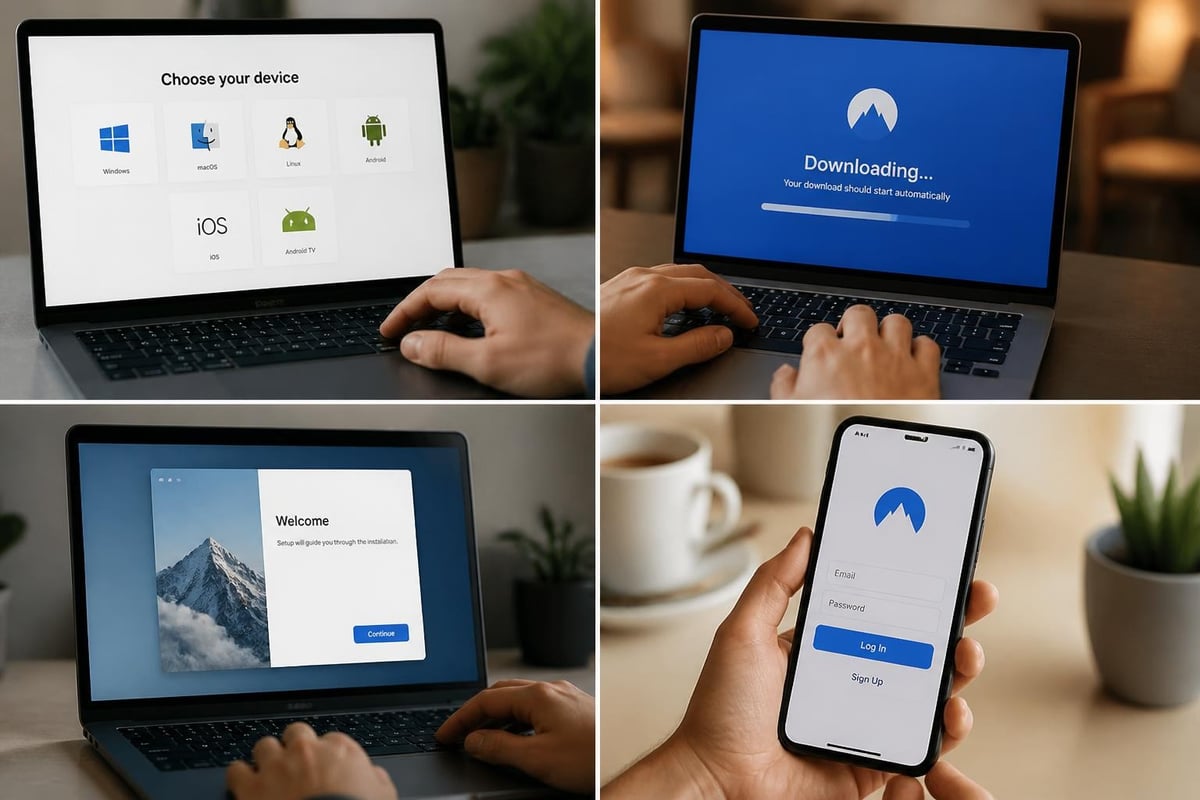
For Windows users, installing NordVPN on Windows 10 and 11 follows a straightforward process:
- Navigate to the NordVPN downloads page from your account dashboard
- Select the Windows version and download the installer
- Run the executable file and grant administrator permissions
- Follow the installation wizard prompts
- Launch the application and log in with your credentials
- Allow the application to configure network settings
The Windows application typically installs within minutes and automatically configures the necessary network adapters for VPN functionality.
macOS Configuration
Mac users benefit from a native application optimised for both Intel and Apple Silicon processors. Download the macOS version from your account dashboard, open the DMG file, and drag NordVPN to your Applications folder. Launch the app, authenticate with your credentials, and grant necessary system permissions when prompted.
Mobile Device Setup
Installing NordVPN on iOS and Android devices requires downloading the official application from the App Store or Google Play Store respectively. Sign in with your existing account credentials-there's no need to create separate mobile accounts. The mobile applications offer simplified interfaces whilst maintaining full feature parity with desktop versions.
| Platform | Installation Time | Auto-Connect | Kill Switch |
|---|---|---|---|
| Windows 10/11 | 3-5 minutes | Yes | Yes |
| macOS | 2-4 minutes | Yes | Yes |
| iOS | 1-2 minutes | Yes | Yes |
| Android | 1-2 minutes | Yes | Yes |
| Linux | 5-10 minutes | Manual | Yes |
Connecting to NordVPN Servers
Once installation is complete, connecting to NordVPN servers represents the core functionality of this tutorial NordVPN guide. The application offers multiple connection methods to accommodate different user preferences and technical requirements.
Quick Connect Feature
The Quick Connect button automatically selects the optimal server based on your location and current server load. This represents the simplest connection method for users who want immediate protection without manual server selection. NordVPN's algorithm considers distance, server capacity, and network congestion to determine the best available option.
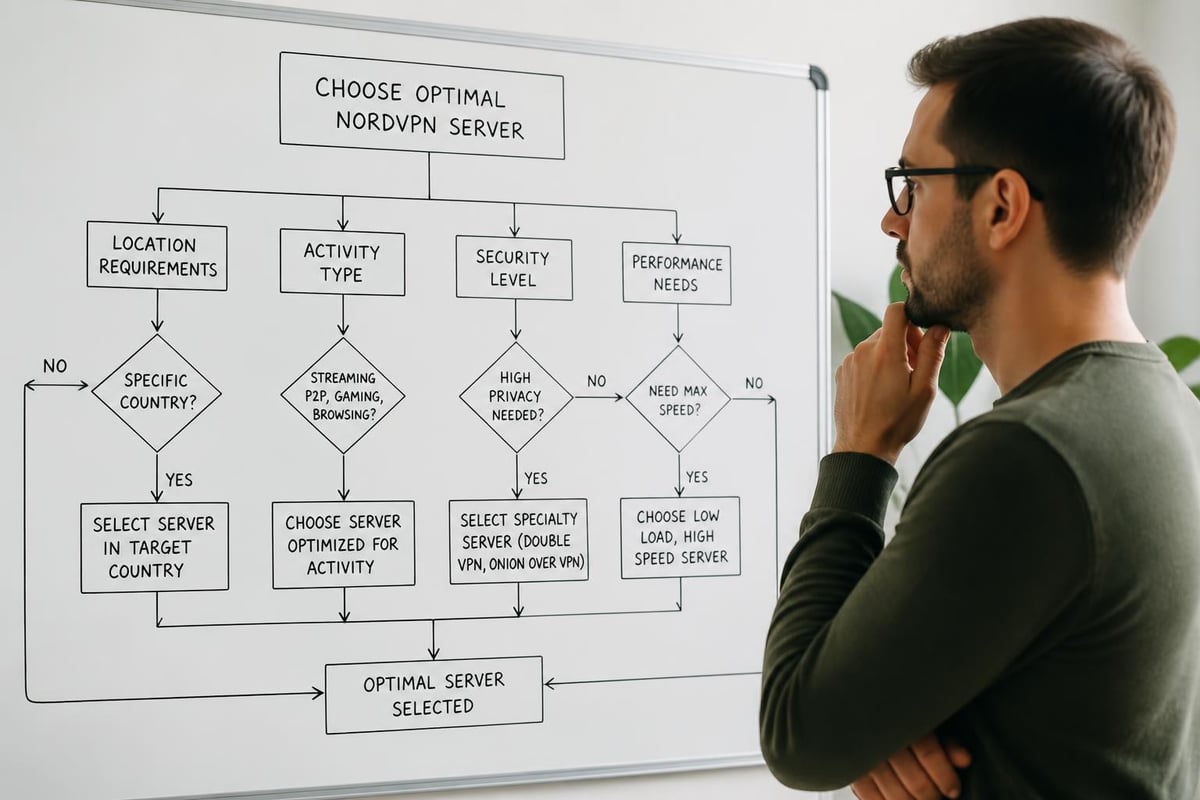
For those who prefer manual control, the server list displays all available countries and cities. Simply click on your preferred location to establish a connection. The interface shows real-time server load percentages, helping you avoid congested servers that might impact performance.
Specialised Server Selection
NordVPN provides several specialised server categories:
- P2P servers optimised for torrenting and file sharing
- Obfuscated servers that disguise VPN traffic in restrictive networks
- Double VPN servers routing traffic through two servers for enhanced security
- Dedicated IP servers providing consistent IP addresses
Selecting the appropriate server type ensures optimal performance for your specific use case. Gaming and streaming typically perform best with standard servers in nearby locations, whilst privacy-focused users might prefer Double VPN configurations despite slightly reduced speeds.
Configuring Essential Security Settings
This tutorial NordVPN wouldn't be complete without addressing critical security configurations that enhance your protection beyond basic connection establishment. These settings transform NordVPN from a simple connection tool into a comprehensive security solution.
Kill Switch Activation
The Kill Switch prevents data leaks if your VPN connection drops unexpectedly. Navigate to Settings > Kill Switch and enable this feature to ensure no unencrypted traffic escapes your device. NordVPN offers two Kill Switch variations:
Internet Kill Switch blocks all internet connectivity when VPN disconnects
App Kill Switch terminates specific applications if VPN protection fails
Enable both options for maximum security, particularly if you handle sensitive information or operate in environments where privacy breaches carry serious consequences.
CyberSec Feature
CyberSec blocks malicious websites, intrusive advertisements, and known malware domains. Activate this feature in the Settings menu to add an additional security layer beyond encryption. This proves particularly valuable when browsing unfamiliar websites or accessing public Wi-Fi networks where malicious actors frequently operate.
Protocol Selection
NordVPN supports multiple VPN protocols, each offering different balances between speed and security:
| Protocol | Security Level | Speed | Best For |
|---|---|---|---|
| NordLynx | Very High | Excellent | General use, streaming |
| OpenVPN UDP | High | Good | Most activities |
| OpenVPN TCP | High | Moderate | Unstable connections |
| IKEv2/IPsec | High | Very Good | Mobile devices |
NordLynx, built on WireGuard technology, typically delivers the best performance whilst maintaining strong security standards. The application defaults to this protocol, but advanced users can manually select alternatives based on specific requirements. For households seeking network-wide protection, pre-configured VPN routers offer an alternative approach that secures all connected devices simultaneously without individual application installations.
Advanced Configuration Options
Moving beyond basic setup, this tutorial NordVPN section explores advanced features that experienced users leverage for enhanced functionality and customisation.
Auto-Connect Settings
Configure NordVPN to automatically connect when your device starts or when joining untrusted networks. Access these options through Settings > Auto-Connect and specify:
- Automatic connection on application launch
- Auto-connect to specific server types or locations
- Connection triggers based on network security status
These automation features ensure consistent protection without requiring manual intervention each time you access the internet.
Split Tunnelling Configuration
Split tunnelling allows certain applications or websites to bypass the VPN connection whilst others remain protected. This proves useful for:
- Accessing local network resources whilst connected to VPN
- Excluding bandwidth-intensive applications that don't require encryption
- Maintaining access to region-locked services that block VPN traffic
Configure split tunnelling by navigating to Settings > Split Tunnelling and adding applications or IP addresses to the exclusion list. Exercise caution with this feature, as excluded traffic travels without VPN protection.
DNS Configuration
Custom DNS settings provide additional privacy and performance benefits. NordVPN includes its own DNS servers, but advanced users might prefer alternative providers for specific functionality. The application supports custom DNS configuration whilst maintaining VPN encryption for all traffic.
Optimising Performance and Troubleshooting
Even with proper configuration, you may occasionally encounter performance issues or connection difficulties. This tutorial NordVPN segment addresses common challenges and optimisation strategies.
Speed Optimisation Techniques
If you're experiencing slower-than-expected speeds, consider these adjustments:
- Switch to nearby servers as distance significantly impacts latency
- Change VPN protocols to NordLynx for improved performance
- Disable CyberSec temporarily to eliminate potential bottlenecks
- Connect during off-peak hours when server load is reduced
- Use wired connections instead of Wi-Fi when possible
Understanding VPN performance factors helps set realistic expectations-VPN encryption inherently introduces some overhead, but modern protocols minimise this impact significantly.
Common Connection Issues
Authentication failures typically result from incorrect credentials or expired subscriptions. Verify your account status through the NordVPN website and ensure you're using current login information.
Connection timeouts often indicate network restrictions or firewall interference. Try switching protocols or enabling obfuscated servers if connecting from restrictive networks.
DNS leaks compromise privacy despite active VPN connections. Test for leaks using online tools and ensure NordVPN's DNS servers are properly configured in your system settings.
Maximising NordVPN Features for Specific Use Cases
Different activities benefit from tailored NordVPN configurations. This tutorial NordVPN section provides activity-specific guidance for optimal results.
Streaming Configuration
For streaming services, connect to servers in the content's origin country. NordVPN maintains servers specifically optimised for popular streaming platforms, though these aren't explicitly labelled. Tips for maximising NordVPN performance include using NordLynx protocol and selecting servers with lower load percentages for buffer-free viewing.
Gaming Setup
Gamers should prioritise low-latency connections by selecting nearby servers and disabling unnecessary features like CyberSec that might introduce additional processing delays. The WireGuard-based NordLynx protocol offers the best balance between security and performance for gaming applications.
Remote Work Security
Remote workers handling sensitive corporate data should enable the Kill Switch, activate two-factor authentication, and consider Double VPN configurations for enhanced security. Regular security audits and protocol updates ensure your remote work environment maintains corporate security standards.
Torrenting Best Practices
Use P2P-optimised servers for torrenting activities, enable the Kill Switch to prevent IP exposure if connections drop, and verify that your BitTorrent client is configured to use the VPN connection exclusively. NordVPN allows P2P traffic on specific servers whilst maintaining high-speed connections and robust security.
Managing Multiple Devices and Connections
NordVPN permits six simultaneous connections per account, allowing protection across multiple devices from a single subscription. This tutorial NordVPN coverage extends to multi-device management strategies.
Device Prioritisation
Determine which devices require constant VPN protection versus occasional use. Smartphones, laptops, and tablets used on public networks should maintain persistent connections, whilst home desktop computers might only require VPN activation for specific activities.
Router-Level Protection
Installing NordVPN on compatible routers provides network-wide protection without counting against your device limit. Detailed setup instructions explain router configuration, though this requires technical knowledge and compatible hardware. Router-level VPN ensures all connected devices-including smart home equipment and gaming consoles-benefit from encrypted connections automatically.
Account Sharing Considerations
Whilst NordVPN's terms permit device sharing within households, account security requires careful credential management. Avoid sharing login details beyond trusted family members, and regularly review active sessions through your account dashboard to identify unauthorised access.
Maintaining Your NordVPN Installation
Regular maintenance ensures continued security and optimal performance. This tutorial NordVPN guide concludes with essential upkeep procedures.
Application Updates
NordVPN releases regular updates addressing security vulnerabilities, adding features, and improving performance. Enable automatic updates in your application settings to ensure you're always running the latest version. Manual updates are available through the application menu or by downloading fresh installers from the NordVPN website.
Security Audits
Periodically verify your VPN is functioning correctly using online leak tests that check for DNS, WebRTC, and IPv6 leaks. These tests confirm your traffic is properly encrypted and routed through NordVPN servers rather than exposing your actual IP address.
Account Security Reviews
Review your NordVPN account quarterly to verify subscription status, check for unauthorised device connections, and update payment information as needed. Enable two-factor authentication if you haven't already, providing an additional security layer against account compromise.
| Maintenance Task | Frequency | Impact Level |
|---|---|---|
| Application updates | Weekly | High |
| Leak testing | Monthly | High |
| Server optimisation | Bi-weekly | Medium |
| Account security review | Quarterly | High |
| Protocol evaluation | As needed | Medium |
Regular monitoring of your VPN connection status ensures consistent protection. The NordVPN application displays current connection status prominently, but developing habits around security verification prevents accidental exposure of sensitive data.
For comprehensive guidance on getting started with NordVPN, the official support documentation provides platform-specific instructions and addresses common setup questions. Additionally, video tutorials offer visual walkthroughs particularly helpful for visual learners or those encountering specific configuration challenges.
This tutorial NordVPN has covered essential setup procedures, security configurations, performance optimisation, and ongoing maintenance requirements. Proper implementation of these steps ensures you maximise the value of your VPN subscription whilst maintaining robust security across all your online activities throughout 2026 and beyond.
Mastering NordVPN configuration empowers you to protect your online privacy effectively across all devices and use cases. Whether you need individual device protection or prefer comprehensive network-wide security, understanding VPN fundamentals ensures you make informed decisions about your digital safety. U Shield VPN simplifies this process with pre-configured VPN routers that protect every device on your network automatically, eliminating the need for individual application installations whilst providing enterprise-grade security powered by WireGuard and OpenVPN technologies. Our plug-and-play solutions deliver immediate protection for homes, travellers, and businesses seeking reliable, fast, and secure internet access without complex configuration requirements.
