






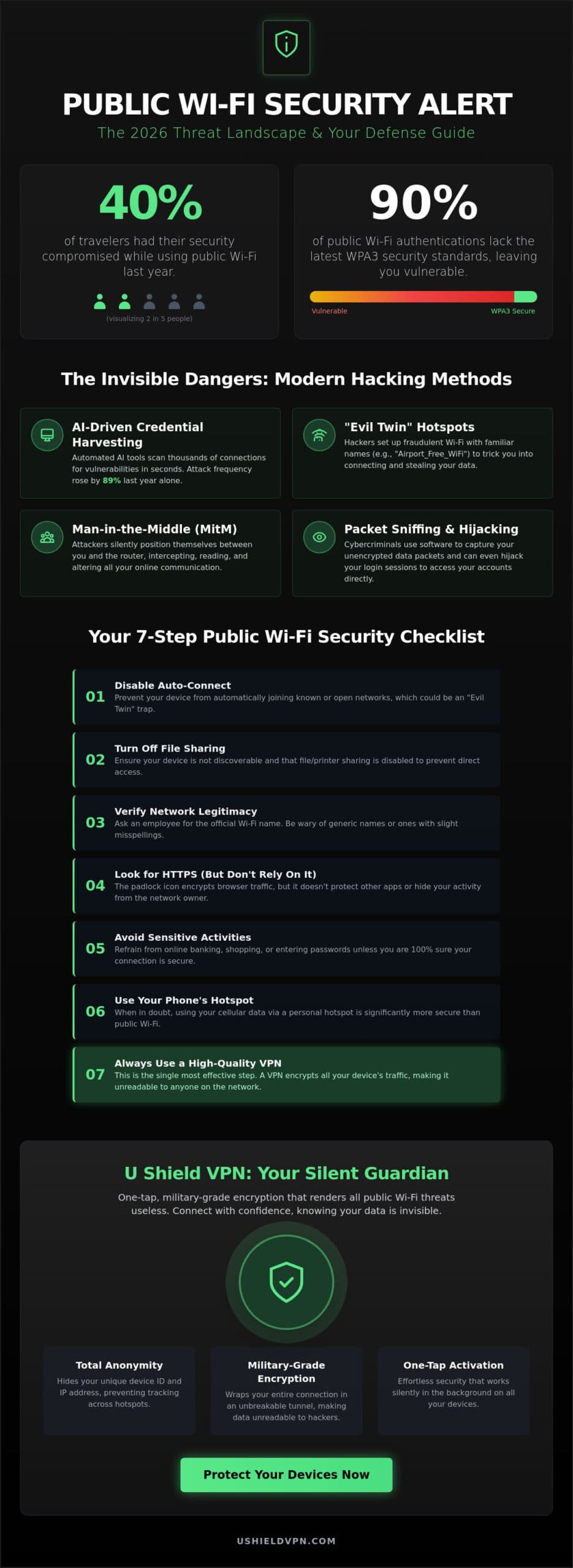
Forty percent of travelers had their security compromised while using public Wi-Fi last year. It’s a sobering statistic that proves your data is a constant target. Every connection at a local cafe or international airport opens a door for hackers. Learning how to protect devices on public Wi-Fi is no longer optional, especially when only 10% of authentications use the latest WPA3 security standards. You shouldn’t have to worry about identity theft every time you check your email on the go.
We know that complex VPN settings and device configurations can feel like a burden. You want security that’s fast, invisible, and effortless. This guide provides exactly that. You’ll master the essential steps to secure your data and maintain total anonymity on any unsecured network. We’ll walk through a clear, non-technical checklist designed for 2026. From protocol updates to streamlined app settings, you’ll gain the confidence that your information is invisible to prying eyes. Let’s make your digital presence bulletproof.
Key Takeaways
- Identify the latest 2026 threats like AI-driven credential harvesting and “Evil Twin” hotspots.
- Learn how to protect devices on public Wi-Fi by disabling automatic connection settings and file sharing.
- Follow a streamlined 7-step checklist to verify network legitimacy before you connect.
- Discover how the U Shield VPN App provides one-tap, military-grade encryption for total anonymity.
- Master the simple configurations needed to keep your data invisible on any unsecured network.
The Hidden Dangers of Public Wi-Fi in 2026
“Free Wi-Fi” is a phrase that often signals convenience. In 2026, it also signals a primary vector for sophisticated data theft. Digital thieves no longer wait for you to make a mistake. They use AI-driven credential harvesting to automate the collection of your logins and passwords. These tools scan thousands of connections simultaneously. They identify vulnerabilities in seconds. This is the new reality of the 2026 threat landscape. AI-enabled adversaries increased their attack frequency by 89% last year alone. Your data is the prize.
Many travelers believe that airport or hotel networks are inherently safe. They assume a room number or an email login provides a layer of security. This is a dangerous myth. These networks are often just as exposed as an open hotspot at a public park. Connecting to an unsecured network does more than risk your bank login. It exposes your physical location and your unique device ID to anyone watching the traffic. You deserve to move through the world without a digital target on your back.
What is a Public Wi-Fi Risk?
A public Wi-Fi risk is any threat present on a network you don’t personally own or manage. Most standard open hotspots lack robust encryption. This leaves your digital handshake out in the open. Hackers use “sniffing” software to capture data packets as they travel through the air. Without a layer of protection, your private messages and browsing history are readable. Understanding public Wi-Fi security risks is the first step toward reclaiming your digital freedom. You must know how to protect devices on public Wi-Fi before you click the connect button.
Identifying High-Risk Hotspots
Not all hotspots are created equal. Some are more dangerous than others. Networks without any password are the most obvious risks. However, “captive portals” that ask for your email can be equally deceptive. They provide a false sense of security while your data remains unencrypted. Awareness is your best defense.
- Hidden Networks: Be wary of networks in high-traffic areas that don’t broadcast an SSID. These are often traps.
- Auto-Join Risks: Your smartphone is constantly searching for known networks. Hackers exploit this by mimicking the names of popular coffee shops.
- Device ID Exposure: Your device’s MAC address can be tracked across different hotspots. This builds a profile of your movements without your consent.
Learning to protect devices on public Wi-Fi starts with recognizing these invisible boundaries. You shouldn’t have to guess if a network is safe. Modern security allows you to connect with absolute confidence. It turns an unsecured environment into a private, fortified space. By taking control of your device settings, you remove the burden of technical worry. You gain the freedom to work and browse anywhere on your own terms.
How Hackers Intercept Your Data: The Mechanics of Public Networks
Understanding how data moves is the first step toward total digital invisibility. When you connect to an open network, your device initiates a digital handshake with the router. In a Man-in-the-Middle (MitM) attack, a hacker silently inserts themselves into this conversation. They don’t just watch your traffic; they control it. This allows them to intercept sensitive information before it even reaches the internet. Learning how to protect devices on public Wi-Fi requires recognizing that the air around you is a shared space. Your connection is a conversation. Hackers are the unwanted listeners.
Packet sniffing remains a favorite tool for modern cybercriminals. They use specialized software to capture unencrypted data packets flowing through the air. Imagine someone reading your mail before it reaches your house. That is exactly what happens to your unencrypted traffic. Beyond sniffing, session hijacking allows attackers to steal your active “login state.” By capturing specific cookies, they can bypass your password and access your accounts as if they were you. Activating the U Shield VPN App creates an immediate, encrypted barrier that renders these interception methods useless.
The Evil Twin Attack Explained
An Evil Twin attack is a fraudulent Wi-Fi access point that appears legitimate to steal user data. This is a psychological game as much as a technical one. A hacker sets up a rogue hotspot in a high-traffic area, naming it something familiar like “Starbucks_Guest_HighSpeed” or “Airport_Free_Premium.” They often broadcast a stronger signal than the official network to trick your device into connecting automatically. Once you’re on their network, every keystroke and login attempt is sent directly to the attacker’s machine. You see a fast connection. They see your entire digital life.
The Vulnerability of HTTPS and SSL
Relying solely on the little padlock icon in your browser is no longer enough. While many resources suggest basic ways to protect yourself on public Wi-Fi, understanding the underlying mechanics reveals why standard measures often fail. Attackers use a technique called SSL Stripping. This forces your device to communicate over an insecure HTTP connection instead of the encrypted HTTPS protocol. You might not even notice the change. The browser looks the same, but your data is now traveling in plain text. To truly protect devices on public Wi-Fi, you need end-to-end encryption that doesn’t rely on the website’s security alone. A VPN ensures that even if a connection is “stripped,” your data remains an unreadable scramble of code. It provides the peace of mind that your private information stays private, regardless of the network’s integrity.
Advanced Device Settings to Protect Devices on Public Wi-Fi
Your device is a digital beacon. By default, it constantly broadcasts its presence to every router and sensor in range. This passive communication is a significant vulnerability. To truly protect devices on public Wi-Fi, you must silence these digital pings before you ever reach for a login screen. Security starts with configuration. It’s about closing the invisible doors that stay open for the sake of convenience.
Start by disabling “Auto-Join” for both Wi-Fi and Bluetooth. When your device automatically connects to a known SSID, it skips the manual verification process. Attackers exploit this by spoofing familiar network names. Similarly, a system-wide firewall is your first line of defense. It acts as a silent guardian, blocking unsolicited inbound pings from other users on the same network. This ensures that while you are visible to the router, you remain invisible to the person sitting three tables away. It turns a shared space into a private one.
Mobile Privacy: iOS and Android Best Practices
Modern smartphones are designed for seamless connectivity. This often comes at the cost of privacy. In your settings, restrict the “Ask to Join Networks” feature. This prevents your phone from searching for and trying to connect to rogue hotspots without your permission. You should also manage your location permissions for Wi-Fi scanning apps. Many apps use these scans to track your physical movements even when GPS is off.
- Randomized MAC Addresses: Ensure this is active. It hides your hardware’s unique ID, making it impossible for hackers to track your device across different locations.
- Discovery Services: Turn off AirDrop, NameDrop, and Nearby Share. These features are open invitations for unsolicited file transfers and device identification.
- Bluetooth Stealth: Disable Bluetooth when not in use. It prevents “Bluejacking” and other proximity-based attacks in high-traffic areas.
If you’re managing multiple Android devices on the same network, a network-level approach is far more efficient than configuring each handset individually. Learn how to secure all Android devices at once with a unified privacy shield that removes the burden of app-by-app management.
Laptop Lockdown: Windows and Mac Security
Laptops often have more “sharing” features enabled by default than mobile devices. When you connect to a new hotspot, Windows and macOS will ask you to define the network profile. Always select “Public.” This single choice triggers a series of automatic hardening measures. It disables network discovery and prevents your computer from appearing in the “Network” sidebar of other users. It’s an instant security boost with zero technical effort.
Go a step further by manually disabling printer sharing and remote desktop access. These services are rarely needed while traveling and provide easy entry points for lateral movement across a network. Finally, always “Forget” the network once your session ends. This simple habit ensures you won’t accidentally protect devices on public Wi-Fi one day, only to have them auto-connect to a compromised version of that same network the next. You maintain total control over when and how you connect. Freedom and security work best when they move together.
The 2026 Public Wi-Fi Security Checklist: 7 Essential Steps
Security is a process, not a fixed state. You’ve hardened your device settings. Now, you must master the operational habit of a secure connection. This checklist serves as your tactical manual for any unsecured environment. It ensures that every time you connect, you do so with total authority over your data. To effectively protect devices on public Wi-Fi, you need a repeatable rhythm that leaves zero room for attacker interference. Consistency is the foundation of your digital freedom.
Beyond the connection itself, practice strict digital hygiene. Avoid sensitive transactions like banking or high-value shopping on public IPs. Even with robust protection, saving these tasks for a private network is a smart strategic move. Always use Multi-Factor Authentication (MFA) for every critical account. MFA adds a secondary barrier that a stolen password simply cannot bypass. Finally, keep a sharp eye on your browser bar. Verify the padlock icon and the ‘https’ prefix in every URL. If these are missing, the site is a risk you don’t need to take.
The Connection Phase: Immediate Actions
Step 1: Ask for the official SSID. Don’t guess. Hackers rely on your assumptions to lure you into the “Evil Twin” traps discussed earlier. Verify the exact network name and password with a staff member before clicking connect.
Step 2: Connect and immediately verify your VPN status. Never browse for even a single second without an encrypted tunnel. Your protection should be instantaneous.
Step 3: Ensure your military grade encryption VPN is active. This specific layer of AES-256 security makes your data a garbled, unreadable mess to anyone attempting to sniff the network. You can secure all your mobile devices instantly with the U Shield VPN App.
The Usage Phase: Staying Stealthy
Step 4: Activate your ‘Kill Switch.’ This is a vital feature. If the Wi-Fi signal drops for a moment, the kill switch cuts your internet traffic entirely. It prevents your device from defaulting to an unencrypted, “naked” connection during a reconnect.
Step 5: Stick to known, encrypted apps. Dedicated applications for services like email or messaging often have better built-in security than their mobile browser counterparts. They offer a more controlled environment for your data.
Step 6: Log out of every session. Don’t just close the tab or the app. Manual logouts clear the active session cookies that hackers target for hijacking. It’s a small step that provides a massive boost to your safety.
Step 7: Turn off your Wi-Fi. Once your task is finished, sever the connection. An offline device is a perfectly secure device. By following these steps, you protect devices on public Wi-Fi with the same precision used by security professionals. You stay fast, stay invisible, and stay in control.
U Shield VPN: Your Silent Guardian on Any Network
Security shouldn’t feel like a burden. It should feel like freedom. You’ve mastered the checklist and hardened your settings. Now, you need the engine that powers your digital defense. U Shield VPN acts as a silent guardian, operating in the background while you focus on your day. To effectively protect devices on public Wi-Fi, you need more than just awareness. You need a shield that turns every unsecured network into a private fortress. It’s professional-grade security made effortless.
The U Shield VPN App utilizes military-grade encryption to transform your sensitive data into an unreadable scramble. This is the same AES-256 standard used by government agencies to protect high-level secrets. Hackers attempting to sniff the network see nothing but digital noise. You see your bank account, your private emails, and your business documents with absolute peace of mind. It’s the ultimate way to protect devices on public Wi-Fi without sacrificing your connection speed or your time.
App vs. Router: Which Do You Need on the Go?
Choosing the right tool depends on your lifestyle. The U Shield VPN App is the perfect companion for individual smartphones and tablets. It’s lightweight, fast, and ready for one-tap activation the moment you enter a cafe or airport lounge. However, digital nomads and business travelers often face a different challenge. Managing multiple devices in a hotel room can be tedious. That’s where the U Shield VPN Router excels. This compact hardware solution creates a secure, private Wi-Fi bubble for every device you own simultaneously.
- U Shield VPN App: Ideal for mobile users who need instant, on-the-go protection for a single device.
- U Shield VPN Router: The gold standard for travelers who need to secure laptops, tablets, and smart devices at once.
- Unified Security: Both solutions offer built-in anti-trackers and kill switches to prevent data leaks.
If you’re unsure which setup fits your travel style, read our full guide on VPN App vs. VPN Router. We break down the technical benefits to help you choose the best security for 2026.
Why U Shield VPN is Different
We prioritize clarity and performance. Most security tools are buried in complex menus and technical jargon. U Shield is different. We’ve stripped away the complexity to provide a simplified interface. Protection happens with a single tap, removing the technical stress from your daily routine. Our high-speed global servers ensure you never have to choose between safety and velocity. You stay secure while enjoying the same low-latency experience you expect from a premium service.
Anonymity is our core promise. We don’t just encrypt your data; we hide your IP address from every snoop on the network. This prevents websites and advertisers from tracking your physical location or building a profile of your browsing habits. Committing to a VPN annual subscription ensures your protection never lapses, delivering seamless, set-and-forget security across every network you encounter throughout the year. With U Shield VPN, your digital footprint vanishes. You gain the confidence to explore the web on your own terms, backed by a silent, powerful guardian that never sleeps. It’s time to reclaim your digital freedom.
Secure Your Digital Freedom Today
You now have the tactical blueprint to navigate any unsecured network with absolute confidence. From hardening your internal settings to following a disciplined connection checklist, you’ve taken the necessary steps to protect devices on public Wi-Fi. Security is no longer a technical burden; it’s a silent, powerful guardian that travels with you. By silencing your device’s digital pings and using verified connections, you remove the vulnerabilities that modern hackers rely on for data theft. You’ve transitioned from a target to an invisible user.
Total peace of mind is just a tap away. Whether you choose the flexibility of the U Shield VPN App or the comprehensive coverage of our plug-and-play U Shield VPN Router hardware, you’re backed by military-grade AES-256 encryption. With 24/7 global server access, your connection remains fast, invisible, and bulletproof. You deserve to browse, work, and connect without the fear of identity theft or data leaks. It’s time to take control of your digital perimeter.
Secure your devices now with U Shield VPN
Step out into the world with the certainty that your data belongs to you alone. Your digital life is private. Keep it that way. Experience the freedom of a secure, unhindered internet today.
Frequently Asked Questions
Is it safe to use public Wi-Fi with a VPN?
Yes, it’s safe. A VPN creates a secure, encrypted tunnel between your device and the internet. This makes the network’s inherent lack of security irrelevant. Even if the hotspot is compromised, your data remains a garbled mess to anyone watching. It’s the most reliable way to maintain total anonymity in any public space.
Can hackers see my screen on public Wi-Fi?
Hackers cannot see your actual screen just by sharing a network. However, they can intercept the data packets you send and receive. This reveals the websites you visit and the information you type into unencrypted forms. To protect devices on public Wi-Fi, you must use encryption to ensure your digital activity remains private and unreadable.
Should I use my phone’s hotspot instead of public Wi-Fi?
Using your phone’s personal hotspot is a significantly safer choice. You own the hardware and control the password. This eliminates the risk of “Man-in-the-Middle” attacks that plague open networks. It’s a clean, private connection that gives you full authority over your digital environment while you’re on the move.
What is the biggest risk of using public Wi-Fi without protection?
Identity theft is the primary danger. Without a shield, your login credentials and financial details travel in plain text. Modern attackers use AI-driven tools to harvest this data in real-time. This can lead to compromised bank accounts and unauthorized access to your private life before you even finish your coffee.
Does ‘forgetting’ a network actually help with security?
Yes, forgetting a network is a vital security habit. It prevents your device from automatically reconnecting to that SSID in the future. This is crucial because hackers often spoof common network names to lure victims. By manually selecting your connection every time, you maintain a strict digital perimeter and avoid accidental exposure.
Can a VPN protect me from an Evil Twin attack?
A VPN provides the ultimate defense against Evil Twin attacks. Even if you accidentally connect to a fraudulent hotspot, your data is wrapped in AES-256 encryption. The hacker might see your device on their list, but they can’t read a single byte of your information. It turns their trap into a useless connection.
How do I know if a public Wi-Fi network is encrypted?
Check your device’s Wi-Fi settings before you click connect. Encrypted networks display a padlock icon next to the signal strength indicator. If the padlock is missing, the network is “Open” and completely unshielded. Always prioritize networks that require a unique password and support the latest WPA3 security standards for better protection.
Do I need a VPN if I only visit HTTPS websites?
Yes, you still need a VPN. While HTTPS encrypts the specific content of a webpage, it doesn’t hide your DNS requests or the websites you visit. Hackers can also use “SSL Stripping” to force your device into an insecure connection without you noticing. A VPN ensures that every bit of your traffic stays invisible to everyone. For the most cost-effective way to maintain this protection year-round, consider a VPN annual subscription that eliminates coverage gaps and reduces your long-term security costs.
